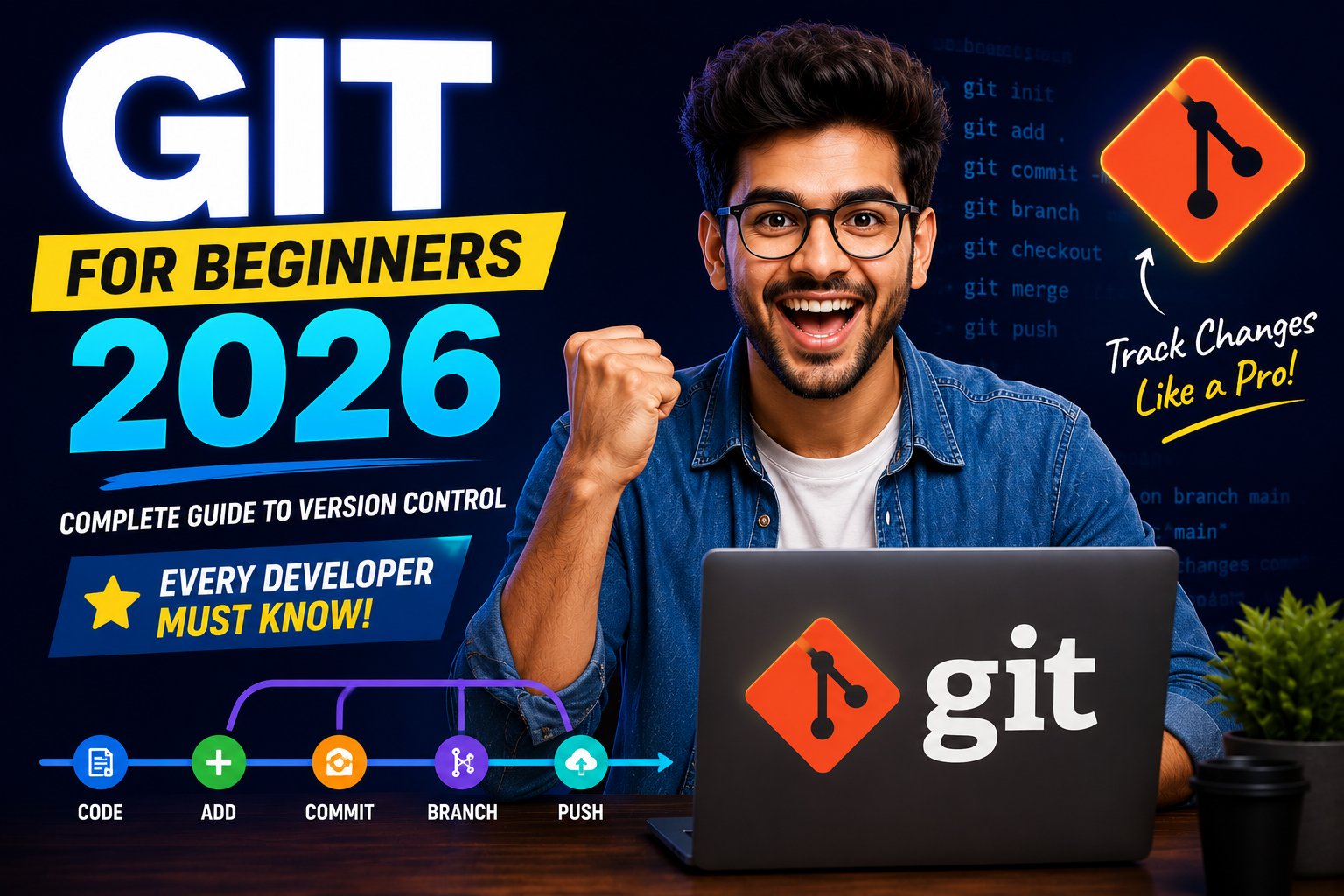
Git for Beginners 2026: Complete Guide to Version Control Every Developer Must Know
Git is the most widely used developer tool in the world — and the one skill every employer expects you to have before day one. This complete beginner's guide covers what Git is, why it matters, all the essential commands, how branching works, common mistakes to avoid, and the best free resources to learn it in 2026.
Picture this: you have been working on a project for three days. Everything is going well — then you make a change, things break, and you cannot remember exactly what the working version looked like. If you had been using Git, you would simply roll back to any previous version in seconds. If you were not, you are in trouble.
Git is the world's most widely used version control system, and in 2026 it is one of the few tools that every employer — from a Bangalore startup to a San Francisco tech giant — expects you to know before day one. It is used by software engineers, data scientists, DevOps engineers, and even content teams managing documentation. This guide gives you everything you need to understand Git from scratch and start using it confidently today.
What Is Git? A Plain-English Explanation
Git is a version control system (VCS) — a tool that tracks every change you make to your files over time. Think of it as an extremely powerful "undo" system for your entire codebase, combined with a full history of who changed what, when, and why.
A useful analogy: imagine you are writing a long assignment. Without Git, you save files as essay.docx, essay_v2.docx, essay_final.docx, and essay_FINAL_real.docx — a messy, confusing system that still leaves you one bad save away from losing everything. With Git, you keep one file and Git invisibly maintains a complete, labelled history of every version — so you can always retrieve exactly what the file looked like at any point in time.
Git was created in 2005 by Linus Torvalds — the same person who created the Linux kernel — because he needed a faster, more reliable version control system for managing Linux's development across thousands of contributors worldwide. In 2026, Git 2.52 is the current stable release, with Git 3.0 on the horizon introducing significant improvements to security and performance.
Git vs GitHub: The Confusion Explained Once and For All
This is the most common point of confusion for beginners — and it is simpler than it seems:
| Tool | What It Is | Where It Lives | Who Made It |
|---|---|---|---|
| Git | The version control software that tracks changes | Your local computer | Linus Torvalds (2005) |
| GitHub | A cloud platform that hosts Git repositories online | The internet (cloud) | GitHub Inc. (acquired by Microsoft in 2018 for $7.5 billion) |
Git works without GitHub — you can use it entirely on your local machine. GitHub adds collaboration features: it stores your code in the cloud, lets teams share repositories, and provides tools like pull requests, issue tracking, and CI/CD automation through GitHub Actions. Other platforms that host Git repositories include GitLab and Bitbucket — but GitHub is by far the most widely used in 2026, with over 100 million developer accounts.
Why Every Developer Must Know Git in 2026
Git is not just useful — it is expected. Here is what happens when you do not have Git skills in a real working environment:
- You cannot safely contribute to a team codebase without overwriting someone else's work
- You cannot experiment with new features without risking the working version of your code
- You cannot apply for most developer jobs — Git knowledge appears in nearly every job description
- You cannot contribute to open source projects on GitHub
- You lose entire working versions of code to a single bad edit or accidental deletion
According to GitHub's official documentation, Git is used for both open-source and commercial software development globally — making it the closest thing to a universal skill in the programming world. The Stack Overflow Developer Survey consistently ranks Git as the most-used developer tool by a wide margin, year after year.
The Three Core Concepts You Must Understand First
Everything in Git flows from three areas that your code moves through on its way to being saved:
| Area | What It Is | Analogy |
|---|---|---|
| Working Directory | Where you write and edit your code right now | Your desk where you work |
| Staging Area | Where you select which changes to include in the next save | A tray where you place items before packing |
| Repository | The permanent history of all your committed changes | A filing cabinet with labelled folders |
The flow is always: Working Directory → Staging Area → Repository. You make changes, you stage the ones you want to save, then you commit them to permanent history with a message explaining what you did. This two-step process (stage then commit) gives you precise control over exactly what gets recorded — you do not have to save everything at once.
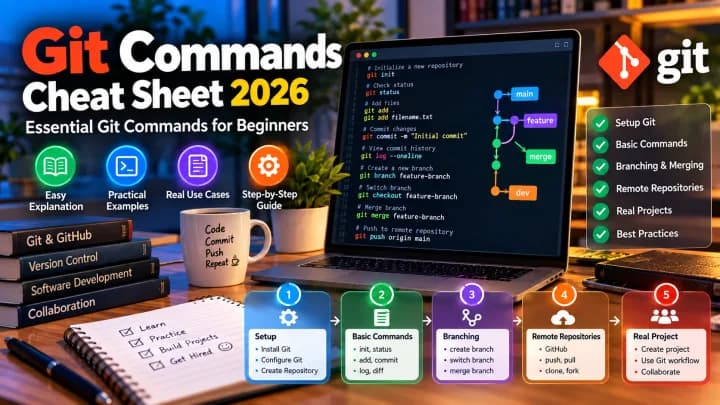
Essential Git Commands Every Beginner Must Know
Setting Up
| Command | What It Does |
|---|---|
git config --global user.name "Your Name" | Sets your name — appears on every commit you make |
git config --global user.email "you@email.com" | Sets your email — used to identify your contributions |
git init | Initialises a new Git repository in your current folder |
git clone [url] | Downloads a copy of an existing repository from GitHub |
Daily Workflow Commands
| Command | What It Does |
|---|---|
git status | Shows which files have been changed, staged, or are untracked |
git add . | Stages all changed files in the current directory |
git add [filename] | Stages a specific file only |
git commit -m "message" | Saves staged changes to history with a descriptive message |
git log | Shows the full history of commits in the repository |
git diff | Shows exactly what changed between the working directory and last commit |
Working with GitHub (Remote Repositories)
| Command | What It Does |
|---|---|
git push origin main | Uploads your local commits to GitHub |
git pull origin main | Downloads and merges the latest changes from GitHub to your local machine |
git fetch | Downloads changes from GitHub without merging them yet |
git remote -v | Shows which remote repository your local repo is connected to |
Branching: The Feature That Makes Git Powerful
Branching is the most important concept in Git after the basic commit workflow — and the one that separates beginners who "use Git" from developers who use it properly. A branch is an independent line of development that splits off from the main codebase, letting you work on a new feature or bug fix in isolation without affecting the working version of your project.
Think of it this way: your main branch (main or master) is the published, working version of your application. When you want to add a new feature, you create a branch, build and test the feature there, and only merge it back into main when it is complete and working. If the feature turns out to be broken or unwanted, you simply delete the branch — and the main codebase is completely unaffected.
| Command | What It Does |
|---|---|
git branch | Lists all branches in the repository |
git branch feature-name | Creates a new branch called "feature-name" |
git checkout feature-name | Switches to the named branch |
git checkout -b feature-name | Creates AND switches to the new branch in one step |
git merge feature-name | Merges the named branch into your current branch |
git branch -d feature-name | Deletes the branch after it has been merged |
Professional development teams follow specific branching strategies. The most widely used in 2026 is the feature branch workflow: every new piece of work gets its own branch, developers open a Pull Request on GitHub when the feature is ready, teammates review the code, and the branch is merged after approval. This is the workflow you will encounter in virtually every professional software job.
The Commit Message: Why Most Beginners Get It Wrong
A commit message is not just an admin task — it is a communication tool for your future self and your teammates. Poor commit messages are one of the most common signs of an inexperienced developer in a professional codebase.
Bad commit messages that tell you nothing:
"fix""changes""update""asdfgh"
Good commit messages that explain the what and why:
"Fix null pointer error in user authentication flow""Add input validation to registration form fields""Refactor payment module to use Stripe API v3""Remove deprecated lodash dependency — replaced with native JS"
A good commit message answers one question: what did this change do and why? Keep it under 72 characters for the first line. Add a blank line and further detail below if needed. This habit makes you significantly easier to work with in a team environment — and it makes your own debugging faster when something goes wrong three months later.
Common Git Mistakes Beginners Make
- Committing directly to main: Always work on a separate branch. Committing broken code directly to main is the fastest way to create problems in a shared codebase.
- Committing too rarely: Commit small, logical units of change frequently rather than committing everything at once after hours of work. Smaller commits are easier to review, easier to roll back, and easier to understand.
- Ignoring
.gitignore: The.gitignorefile tells Git which files to never track — things like environment files (.env), API keys,node_modulesfolders, and compiled binaries. Accidentally pushing API keys or passwords to a public GitHub repository is a serious security incident. Always set up your.gitignorebefore your first commit. - Using
git push --forcecarelessly: Force pushing rewrites the remote repository's history and can permanently delete other people's commits in a shared repository. Never use it on a shared branch without full understanding of the consequences. - Not pulling before pushing: Always run
git pullbefore starting new work and before pushing. This keeps your local branch in sync with remote changes and prevents unnecessary merge conflicts.
The Standard Git Workflow: What a Typical Day Looks Like
Here is the daily Git workflow that professional developers follow — the sequence that becomes second nature within a few weeks of consistent use:
- Start of day:
git pull origin main— sync with the latest remote changes - Create a branch:
git checkout -b feature/your-feature-name - Write code: make your changes in the working directory
- Check status:
git status— see what changed - Stage changes:
git add .orgit add specific-file.js - Commit:
git commit -m "Clear description of what this change does" - Repeat steps 3–6 as many times as needed throughout the day
- Push to GitHub:
git push origin feature/your-feature-name - Open a Pull Request on GitHub for team review
- After approval: merge the branch and delete it
Best Free Resources to Learn Git in 2026
| Resource | Type | Best For | Cost |
|---|---|---|---|
| GitHub Official Docs | Documentation | Authoritative reference for all commands | Free |
| Pro Git Book (git-scm.com) | Text book | Deep understanding of how Git works | Free online |
| freeCodeCamp Git Course (YouTube) | Video | Visual learners starting from zero | Free |
| Learn Git Branching (learngitbranching.js.org) | Interactive | Visual, gamified branching practice | Free |
| DataCamp Intro to Git | Interactive course | Structured exercises with instant feedback | Free (with account) |
| VS Code Source Control Panel | GUI tool | Using Git without the terminal initially | Free |
Frequently Asked Questions
Is Git difficult to learn for complete beginners?
The basics of Git — init, add, commit, push, pull — can be learned in a single day and become comfortable within a week of daily use. The more advanced concepts like rebasing, cherry-picking, and resolving complex merge conflicts take longer but are not required immediately. Most working developers use only about ten Git commands in their daily workflow, and those ten can be learned in under three hours of focused practice.
Do I need to use Git from the terminal?
No. Visual Studio Code has a built-in Source Control panel that handles most common Git operations without any command line. GitHub Desktop is another free GUI that is excellent for beginners. However, learning at least the core terminal commands is strongly recommended — it makes you more versatile, faster in certain situations, and more capable of following tutorials and documentation that assume terminal usage.
What is the difference between Git merge and Git rebase?
Both commands integrate changes from one branch into another, but they do it differently. git merge creates a new "merge commit" that shows where two branches came together — it preserves the full history of both branches. git rebase rewrites the commit history to make it appear as if the feature branch was always based on the latest main branch — it creates a cleaner, linear history. For beginners, always use merge first until you understand the implications of rebase on shared branches.
What is a Pull Request and how does it work?
A Pull Request (PR) is a GitHub feature — not a Git command — that lets you propose merging your branch into another branch (usually main) and request that teammates review your code before it is merged. PRs are the standard collaboration workflow for every professional development team. After you push a branch to GitHub, you open a PR, teammates leave comments or approve it, you address any feedback, and then the branch is merged. This is exactly how open source contribution works too.
Should I learn Git or GitHub first?
Learn Git first, then GitHub. Git is the underlying tool — GitHub is a platform built on top of it. Trying to understand GitHub without knowing Git basics is like trying to use a car without knowing how to drive. Spend a few days getting comfortable with local Git commands before pushing anything to GitHub. Once the local workflow makes sense, connecting to GitHub and pushing your first repository feels natural rather than confusing.
Sources: GitHub Official Documentation | Pro Git Book — Scott Chacon | Tech Insider — Git Tutorial 2026 | freeCodeCamp — What is Git | DataCamp — Introduction to Git
Comments
0Be the first to leave a comment.