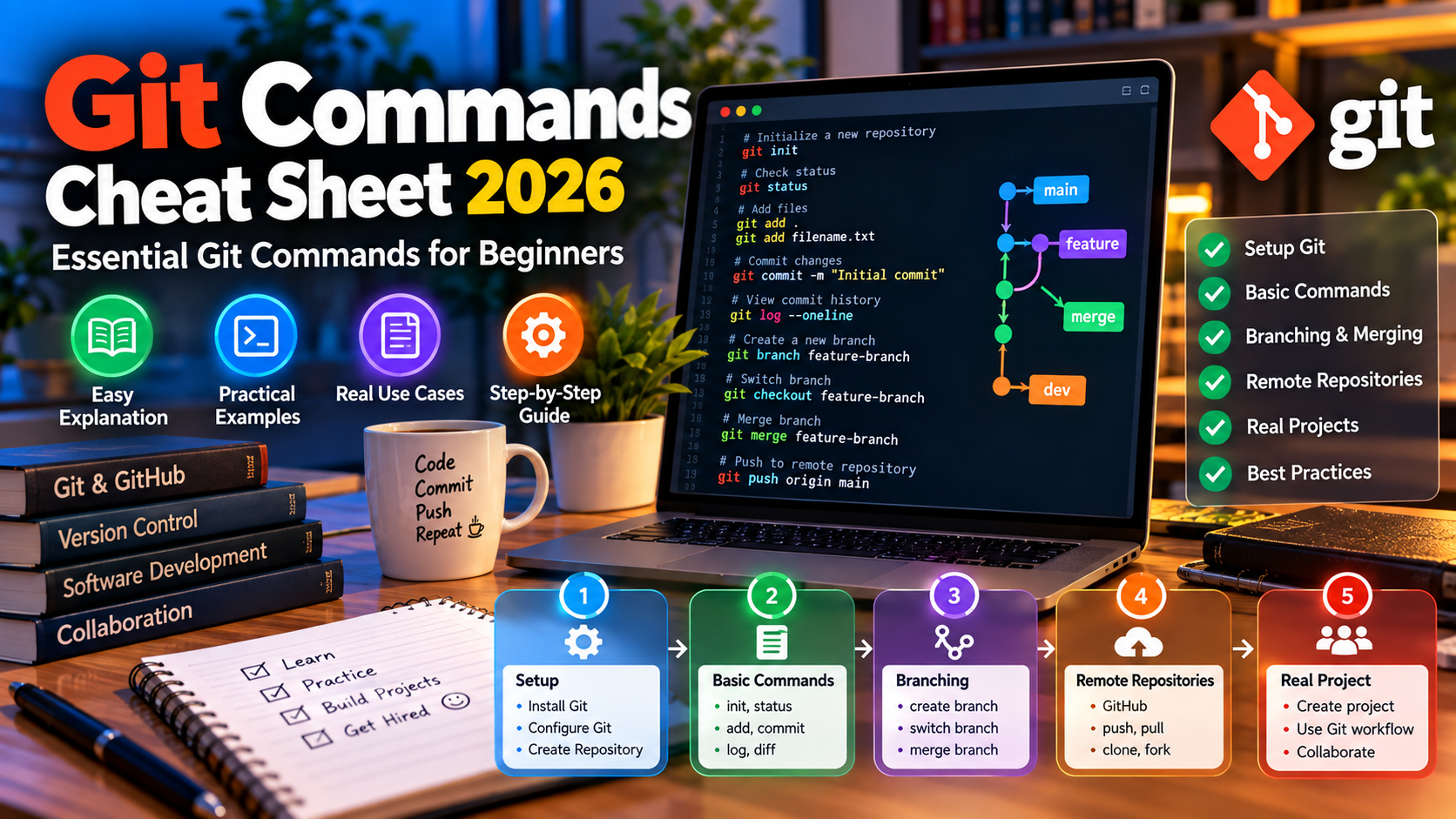
Git Commands Cheat Sheet 2026: Essential Git Commands for Beginners
Learn the essential Git commands beginners need in 2026, including git init, status, add, commit, branch, merge, pull, push, clone, and more, with practical examples.
Git is one of the most important tools to learn if you are serious about software development. Whether you are building a website, mobile app, backend API, desktop application, or working with a team, Git helps you track changes and manage different versions of your code.
If you are new to Git, the number of commands can feel overwhelming. The good news is that you do not need to memorize hundreds of commands. Most beginners can accomplish their everyday Git workflow with a relatively small set of commands.
This Git commands cheat sheet explains the most useful commands for beginners in 2026, with simple explanations and practical examples.
git status → git add → git commit → git push, while commands such as git clone, git branch, git switch, git merge, and git pull help you work with repositories and branches.
What Is Git?
Git is a free and open-source distributed version control system designed to track changes in software projects. Unlike a simple backup system, Git records the history of your project so you can inspect changes, create branches, compare versions, and collaborate with other developers.
Git is different from GitHub. Git is the version-control software, while GitHub is a platform that can host Git repositories and provide collaboration features.
Git Commands Cheat Sheet
| Command | Purpose | Example |
|---|---|---|
git init | Create a repository | git init |
git clone | Copy an existing repository | git clone URL |
git status | Check repository state | git status |
git add | Stage changes | git add . |
git commit | Save a snapshot | git commit -m "Add login" |
git log | View commit history | git log --oneline |
git branch | Manage branches | git branch |
git switch | Switch branches | git switch main |
git merge | Combine branch histories | git merge feature |
git pull | Fetch and integrate remote changes | git pull |
git push | Send commits to a remote repository | git push |
git fetch | Download remote updates | git fetch |
git diff | View changes | git diff |
git restore | Restore working-tree files | git restore file.txt |
git remote | Manage remote repositories | git remote -v |
1. git init
The git init command creates a new Git repository in an existing project directory.
git initAfter running the command, Git creates the repository metadata inside a hidden .git directory.
For example:
mkdir my-project
cd my-project
git init
The official Git documentation describes git init as creating an empty Git repository or reinitializing an existing repository.
2. git clone
Use git clone when you want to copy an existing repository to your computer.
git clone https://example.com/project.gitA common workflow is to clone a repository hosted on a Git platform and then work on the local copy.
3. git status
git status is one of the commands you should use frequently.
git statusIt shows information about the current repository, including modified, staged, deleted, and untracked files. The official documentation provides detailed status information and explains its short-format status codes.
When you are unsure about what Git currently sees, run git status.
4. git add
Git uses a staging area before creating a commit. The git add command places changes into that staging area.
To stage one file:
git add index.htmlTo stage several files:
git add index.html style.css app.jsTo stage changes in the current directory:
git add .Review the staged changes with git status before committing.
5. git commit
A commit records a snapshot of the changes that you have staged.
git commit -m "Add login page"Use clear commit messages that explain what changed.
Good examples include:
git commit -m "Add user registration"
git commit -m "Fix checkout validation"
git commit -m "Update API error handling"
6. git log
Use git log to inspect the commit history.
git logFor a shorter history:
git log --onelineThis is particularly useful when you need to find an earlier change or understand how a project evolved.
7. git diff
git diff helps you inspect changes before committing them.
git diffThis is a useful habit because it lets you review your work before putting it into a commit.
8. git branch
Branches allow you to work on a separate line of development without immediately changing another branch.
List local branches:
git branchCreate a branch:
git branch feature-loginGit's official reference groups branching and merging commands such as branch, switch, merge, log, and stash together as core branch-management operations.
9. git switch
Use git switch to move between branches.
git switch mainTo create and switch to a new branch:
git switch -c feature-loginUsing a separate feature branch is useful when you want to develop a feature without making unfinished changes directly on the main branch.
10. git merge
git merge combines changes from one branch into another branch.
For example, after completing a feature:
git switch main
git merge feature-login
If the branches contain conflicting changes, Git may report a merge conflict that you need to resolve manually.
11. git remote
A remote is a reference to another repository, commonly a repository hosted on a service such as GitHub, GitLab, or another Git server.
View configured remotes:
git remote -vAdd a remote:
git remote add origin https://example.com/my-project.git12. git push
git push sends local commits to a remote repository.
git push origin mainWhen the upstream branch has already been configured, you can often use:
git pushGit's documentation explains how upstream branches are used by commands such as push, pull, and fetch.
13. git pull
git pull is commonly used to bring remote changes into your current local branch.
git pullBefore starting work, developers often pull the latest changes so their local branch is up to date with the shared repository.
14. git fetch
git fetch downloads information from a remote repository without automatically integrating those changes into your current branch.
git fetchThis can be useful when you want to inspect remote updates before deciding how to integrate them.
15. git restore
git restore can be used to restore files in the working tree.
git restore index.htmlBe careful when using commands that discard changes. If you have important uncommitted work, make sure you understand what will be changed before running the command.
16. git config
git config lets you configure Git settings.
For example, configure your name:
git config --global user.name "Your Name"Configure your email:
git config --global user.email "you@example.com"These settings are commonly used to associate commits with the author information configured on your machine.
17. git --version
Use this command to check the Git version installed on your computer.
git --versionAs of September 28, 2026, the official Git website lists version 2.56.0 as the latest source release. Git's platform-specific downloads can have different release packaging, so check the official download page for your operating system.
The Basic Git Workflow
For a beginner, the most important workflow to remember is:
git status
git add .
git commit -m "Describe the changes"
git push
When starting from an existing remote repository, you might first clone it:
git clone https://example.com/project.git
cd project
Then make your changes and use the status, add, commit, and push workflow.
A Practical Feature-Branch Workflow
A simple team workflow might look like this:
git switch main
git pull

git switch -c feature-login

# Make your changes

git status
git add .
git commit -m "Add login feature"

git push -u origin feature-login
After the feature has been reviewed, it can be merged according to the team's workflow.
Git Commands Beginners Should Memorize First
Do not try to memorize every Git command on your first day.
Start with these:
git clonegit initgit statusgit addgit commitgit loggit branchgit switchgit mergegit pullgit push
Once these become familiar, add commands such as git fetch, git diff, git restore, git stash, and git rebase as your projects require them.
Common Git Mistakes Beginners Make
1. Committing everything without checking
Always use git status and, when appropriate, git diff before creating a commit.
2. Using unclear commit messages
A message such as update tells your future self very little. Prefer messages such as Fix authentication redirect or Add expense export.
3. Working directly on the main branch
For team projects, feature branches can help separate unfinished work from the main development line.
4. Forgetting to pull changes
When working with other developers, keeping your local repository synchronized with the remote repository can reduce avoidable conflicts.
5. Treating Git and GitHub as the same thing
Git is the version-control system. GitHub is one service that can host Git repositories and provide collaboration tools.
Git vs GitHub
| Git | GitHub |
|---|---|
| Version-control software | Online development platform |
| Runs locally | Provides hosted repositories and collaboration features |
| Tracks project history | Can store and share Git repositories |
| Command-line tool | Web platform with additional developer tools |
How to Practice Git
The fastest way to become comfortable with Git is to use it on a real project.
Try this small exercise:
- Create a folder for a small project.
- Run
git init. - Create a file.
- Run
git status. - Run
git add .. - Create a commit.
- Create a feature branch.
- Modify the project.
- Commit the changes.
- Merge the feature branch.
- Connect a remote repository.
- Push the project.
Once you can complete this workflow without constantly looking up every command, move on to more advanced Git concepts.
Final Git Cheat Sheet
# Create repository
git init

# Clone repository
git clone URL

# Check status
git status

# Stage files
git add .

# Commit changes
git commit -m "Message"

# View history
git log --oneline

# Show changes
git diff

# List branches
git branch

# Create and switch branch
git switch -c feature-name

# Switch branch
git switch main

# Merge branch
git merge feature-name

# View remotes
git remote -v

# Download remote updates
git fetch

# Get and integrate remote changes
git pull

# Send commits
git push

# Check Git version
git --version
Frequently Asked Questions
What are the most important Git commands for beginners?
Start with git clone, git init, git status, git add, git commit, git branch, git switch, git merge, git pull, and git push.
What is the latest Git version in 2026?
The official Git website currently lists Git 2.56.0 as the latest source release, dated September 28, 2026. Platform-specific builds can have different release versions, so users should check the official download page for their operating system.
What is the difference between git pull and git fetch?
git fetch downloads information from a remote repository without automatically integrating it into your current branch. git pull retrieves remote changes and then integrates them according to Git's configured behavior.
What is the difference between git add and git commit?
git add stages changes for the next commit. git commit records the staged changes in the repository history.
Do I need GitHub to use Git?
No. Git can be used locally without GitHub. GitHub is a hosting and collaboration platform that works with Git repositories.
Should beginners learn Git?
Yes. Git is an important development tool for tracking code changes, experimenting with branches, collaborating with other developers, and maintaining project history.
Related Articles
- Best Programming Languages to Learn in 2026
- Python vs JavaScript vs Java: Which Should You Learn in 2026?
- JavaScript for Beginners
- Latest Web Development Trends in 2026
Conclusion
Git becomes much easier once you stop trying to memorize commands and start using them as part of a real development workflow.
For beginners, focus on the core cycle: check your changes, stage them, commit them, and push them when appropriate. Then gradually learn branches, merging, remote repositories, and more advanced commands.
The goal is not to know every Git command. The goal is to be comfortable using Git to safely manage your projects and collaborate with other developers.

Comments
0Be the first to leave a comment.